
How to Update Your Seller Information on Blinkit: A Step-by-Step Guide
By Ecomm11 Team ·
Introduction
Understanding Blinkit Seller Information
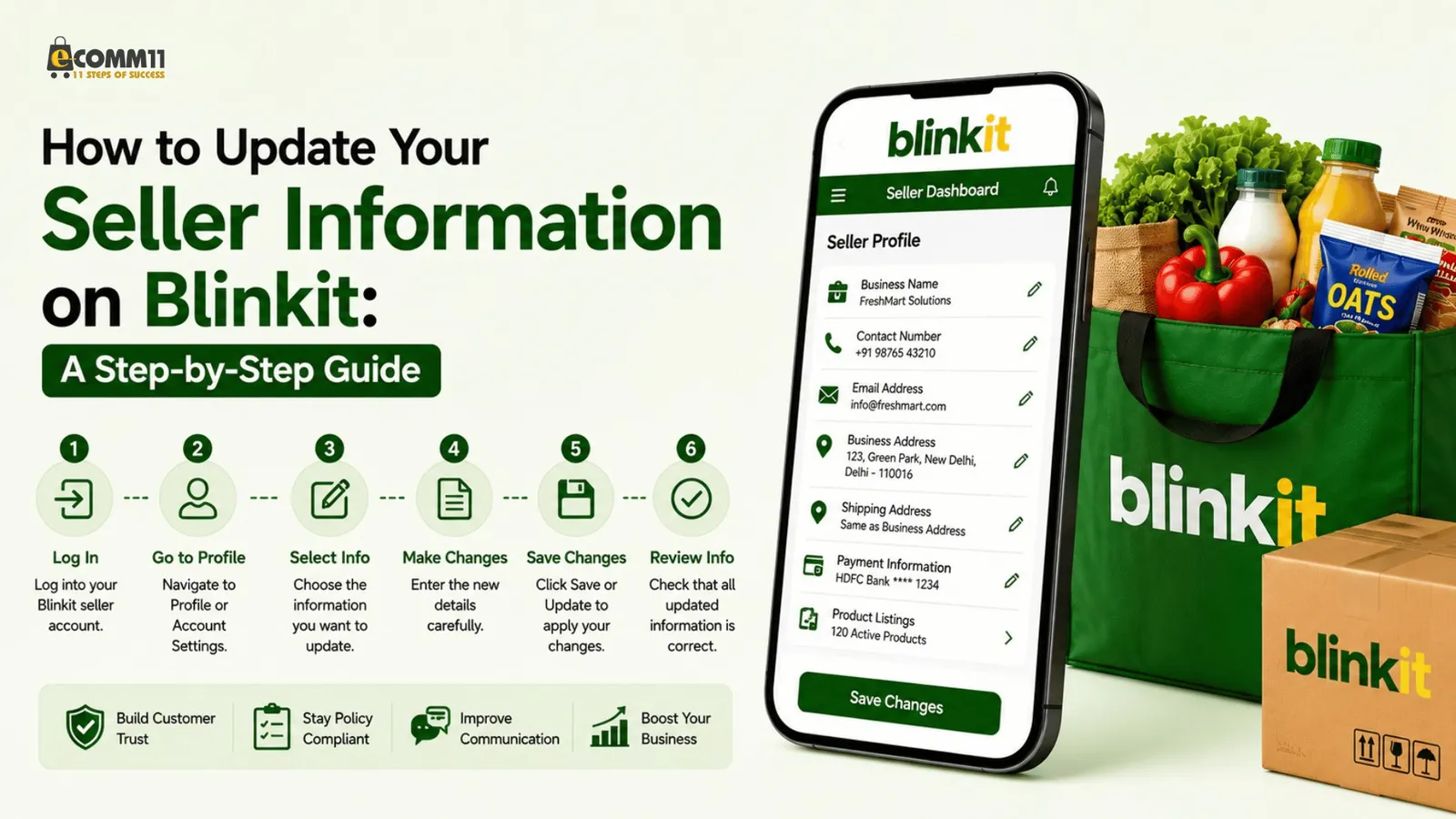
Seller information on Blinkit includes important details that potential customers rely on before making a purchase. Below are key elements that constitute your seller information:
- Business Name
- Contact Information
- Shipping Addresses
- Payment Information
- Product Listings
Keeping these details accurate and current not only improves your visibility but also enhances customer satisfaction.
Step-by-Step Guide to Update Your Seller Information
Step 1: Log into Your Blinkit Account
Start by logging into your Blinkit seller account. Use your registered email address and password to access your dashboard.
Step 2: Navigate to the Seller Profile Section
Once logged in, locate the ‘Profile’ or ‘Account Settings’ option in the dashboard. This section is where you will find all the relevant information to update.
Step 3: Choose the Information to Update
Click on the relevant fields you wish to update, such as:
- Business Name
- Contact Number
- Shipping Information
- Payment Methods
Step 4: Make the Necessary Changes
Carefully input the new information. Ensure that all details are accurate to avoid any issues with customer trust or orders.
Step 5: Save Your Changes
After making your updates, look for the ‘Save’ or ‘Update’ button. Click it to ensure your changes are applied
Step 6: Review Your Updated Information
Finally, double-check that all the revised information appears correctly in your seller profile. This helps confirm that your updates were successful.
Why Regular Updates are Important
Regularly updating your seller information is important for a variety of reasons:
- Customer Trust: Accurate information builds trust with your customers, leading to higher conversion rates.
- Compliance: Keeping details updated ensures compliance with Blinkit’s policies and helps you avoid account suspension.
- Better Communication: Up-to-date contact information allows for smoother communication between you and your customers.
Common Mistakes to Avoid
While updating your seller information, be aware of these common pitfalls:
- Skipping the review of updated information.
- Entering incorrect details that lead to customer confusion.
- Neglecting to keep updated information consistent across all platforms.
What to do next
Updating your seller information on Blinkit is a simple yet vital task that can significantly impact your online selling experience. By following the steps outlined in this guide, you can ensure that your business remains trustworthy and accessible to potential customers.
If you would rather not track these updates yourself, a managed Blinkit seller account from us covers profile changes, catalogue updates and account health checks.
If you need assistance with the seller onboarding process or require further help, consider our Blinkit Seller Onboarding Services. Get started with ease and watch your business flourish!
Related posts
A/B Testing Strategies to Optimise Shopify Facebook Ad Campaigns
eCommerceA step-by-step approach to A/B testing Shopify Facebook ads: what to test first, fair setup in Ads Manager, creative, audience, landing page and offer tests, and how to judge results.
Common Facebook Ads Mistakes Shopify Store Owners Must Avoid
eCommerceThe Facebook ads mistakes that quietly drain Shopify budgets, why each one hurts, and the fix for every one, from tracking and optimisation events to creative fatigue and exclusions.
Google Ads Performance Max Campaigns: A Practical Guide for Shopify Sellers
eCommerceA Shopify seller's guide to Performance Max: what the campaign needs from your feed and tracking, how to structure asset groups, control brand spend, set bids and judge results honestly.